
01
Choose an action
Preview reactions, dances and playful scenes to find a movement that fits the pet role.
Give your pet a starring role. Explore pet performances and choose a scene for their photo.
Creations from this workspace appear here.
An AI pet video generator brings a pet photo into a prepared scene with movement and camera framing from a reference. Explore animal reactions, playful actions and dances on ReelCraze. Watch each example and check its photo roles before choosing a scene that fits your pet.
Start by finding a scene that fits.
STEP 1
Browse pets effects and open the one you want to inspect.
STEP 2
Use a clear photo of your own pet, with the face and relevant body parts visible. Check the individual effect for its specific photo roles.
STEP 3
Review the inputs, settings and credit cost, then generate your video.
Compare the action, framing and cast before choosing a photo.
01
Preview reactions, dances and playful scenes to find a movement that fits the pet role.
02
A close-up highlights the face and markings; a full-body scene also needs a clear view of the body and paws.
03
Some scenes include people or additional animals. Check the required and optional photo slots in the selected effect.
Look for a clear, unobstructed view of your pet. The original performance supplies the movement, so the subject and visible body parts should suit the action.
01
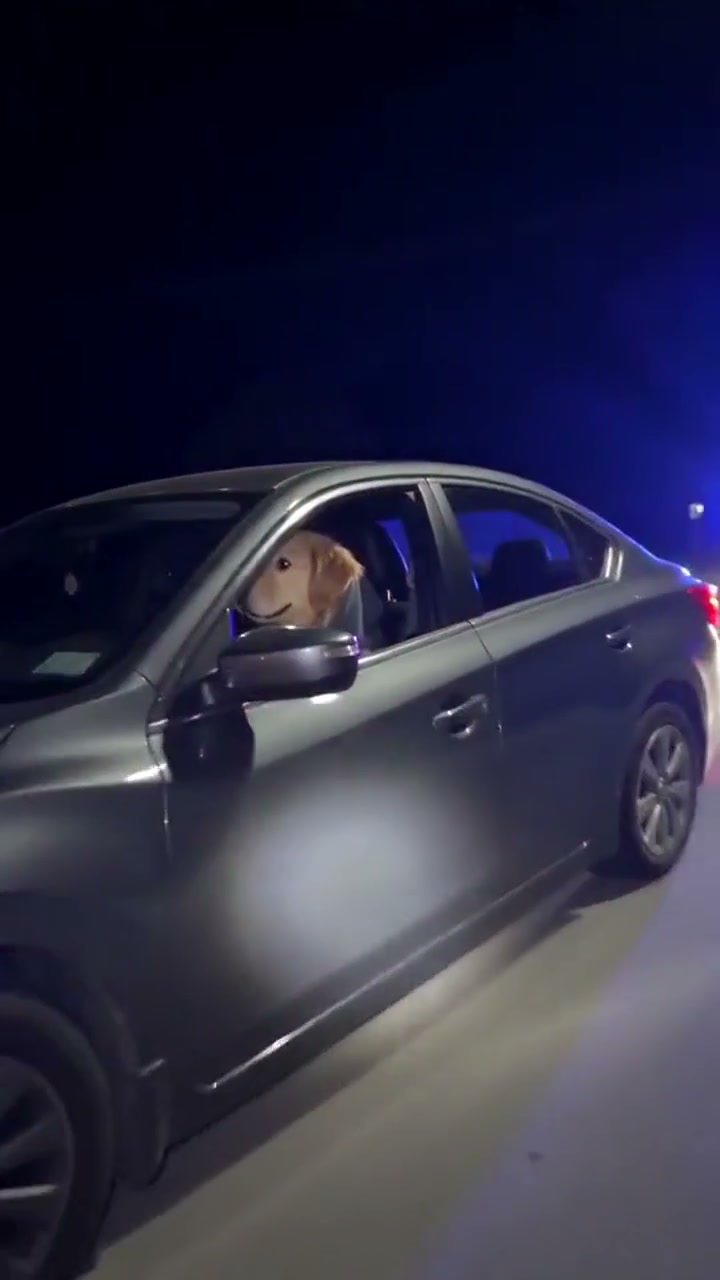
The reference centers on a pet-driver reaction at a car window at night.
02
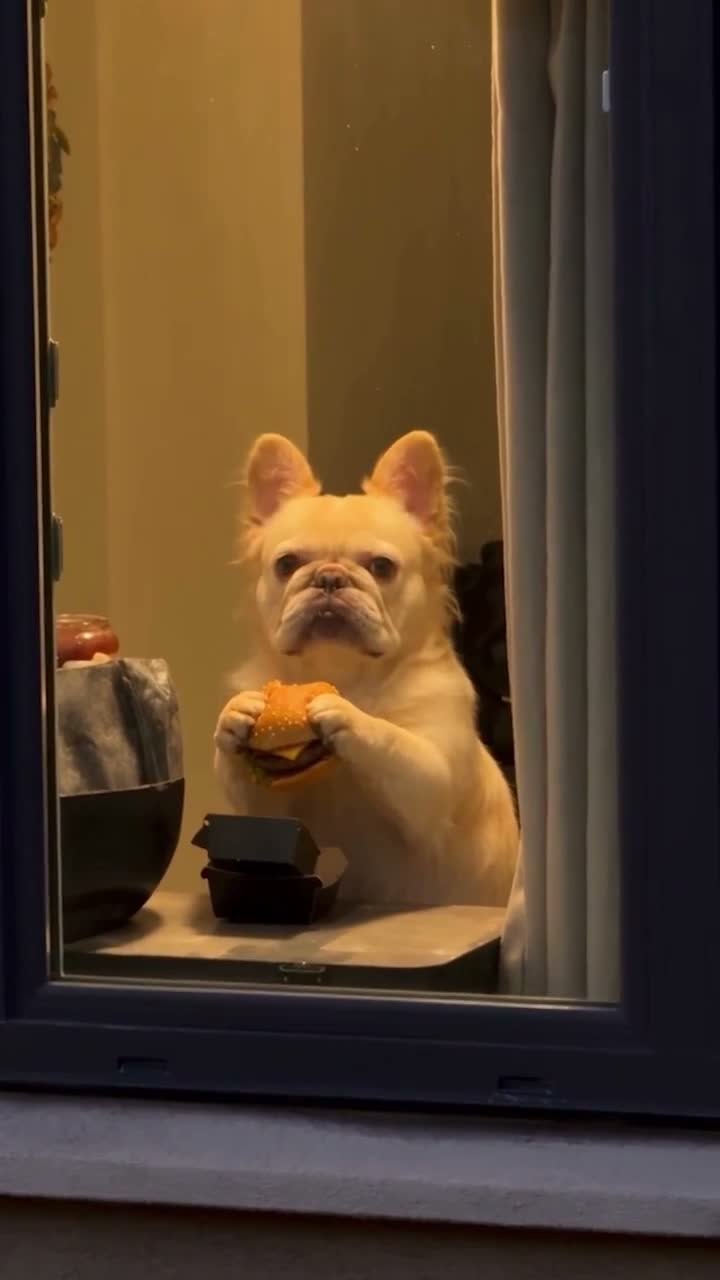
A camera approaches a window as a character eats, notices the intrusion and pulls the curtain.
03
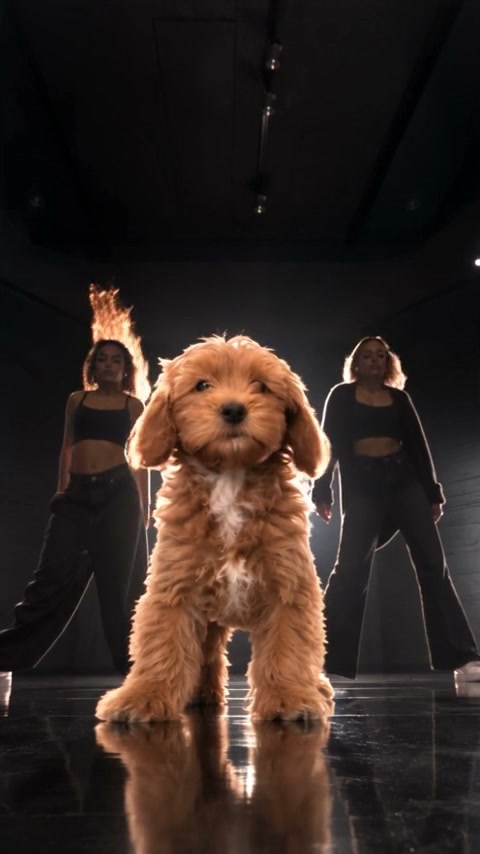
A pet leads a studio dance with two backup dancers behind it.
Match the framing to the action and keep the important details visible.
A close-up can suit a reaction; a dance may need the body and paws visible.
Better fit
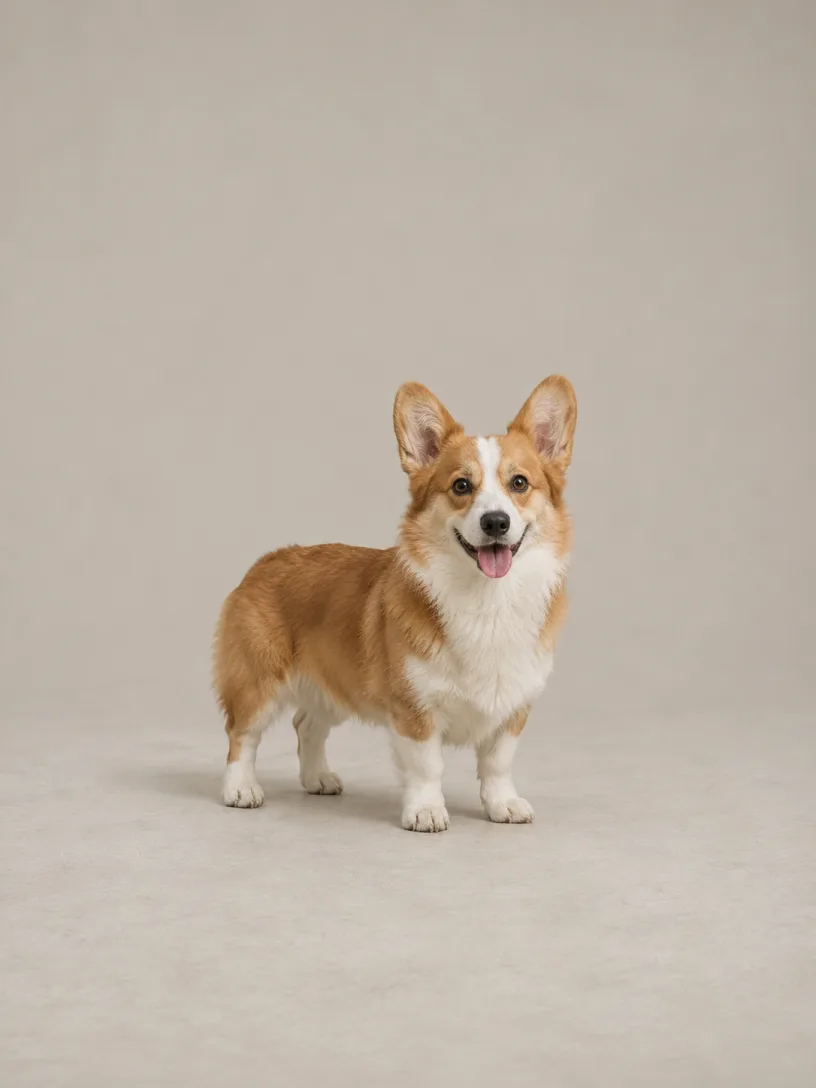
Harder to use
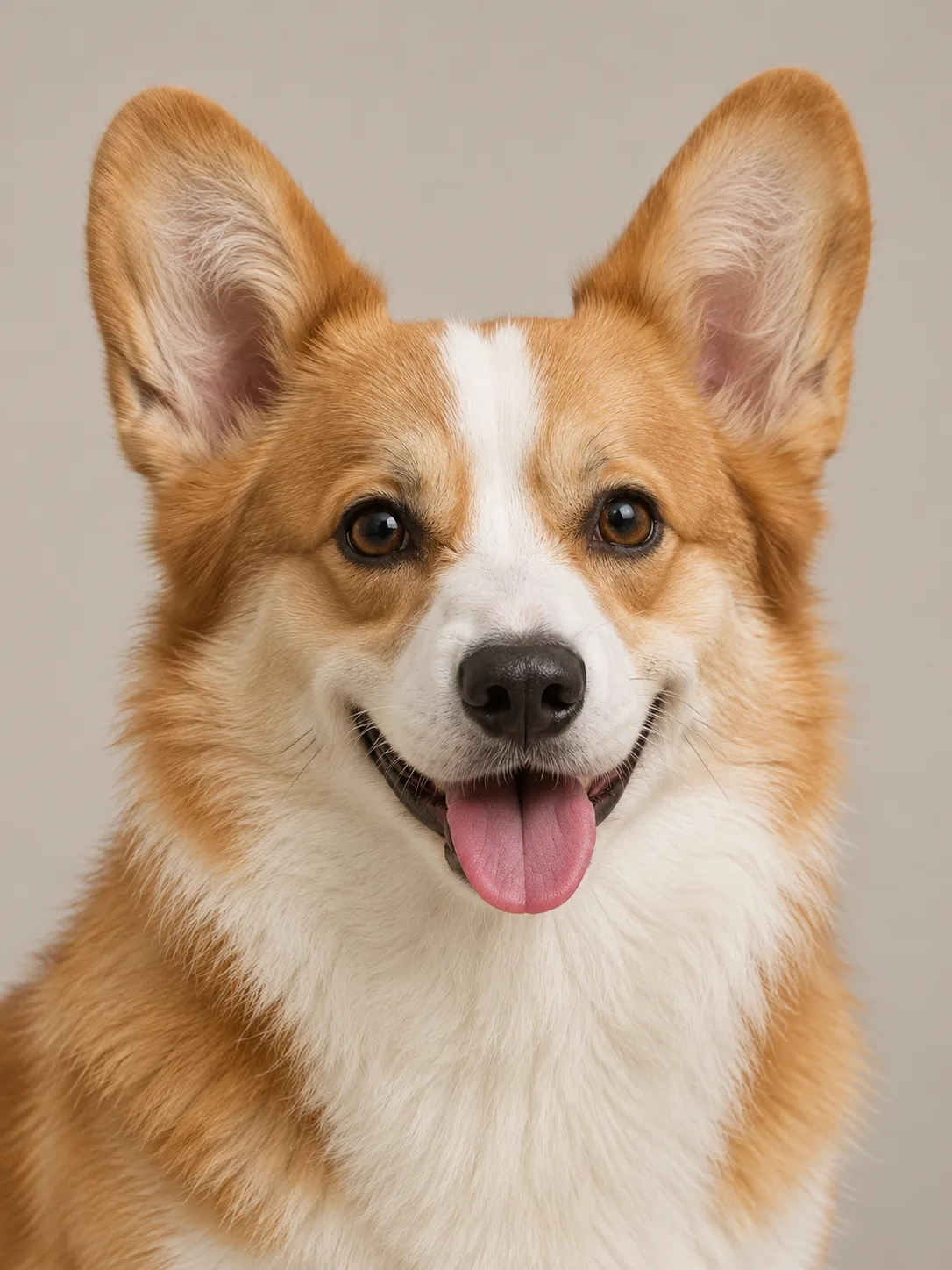
For an action reference, look for an unobstructed view of the animal and its movement.
Better fit
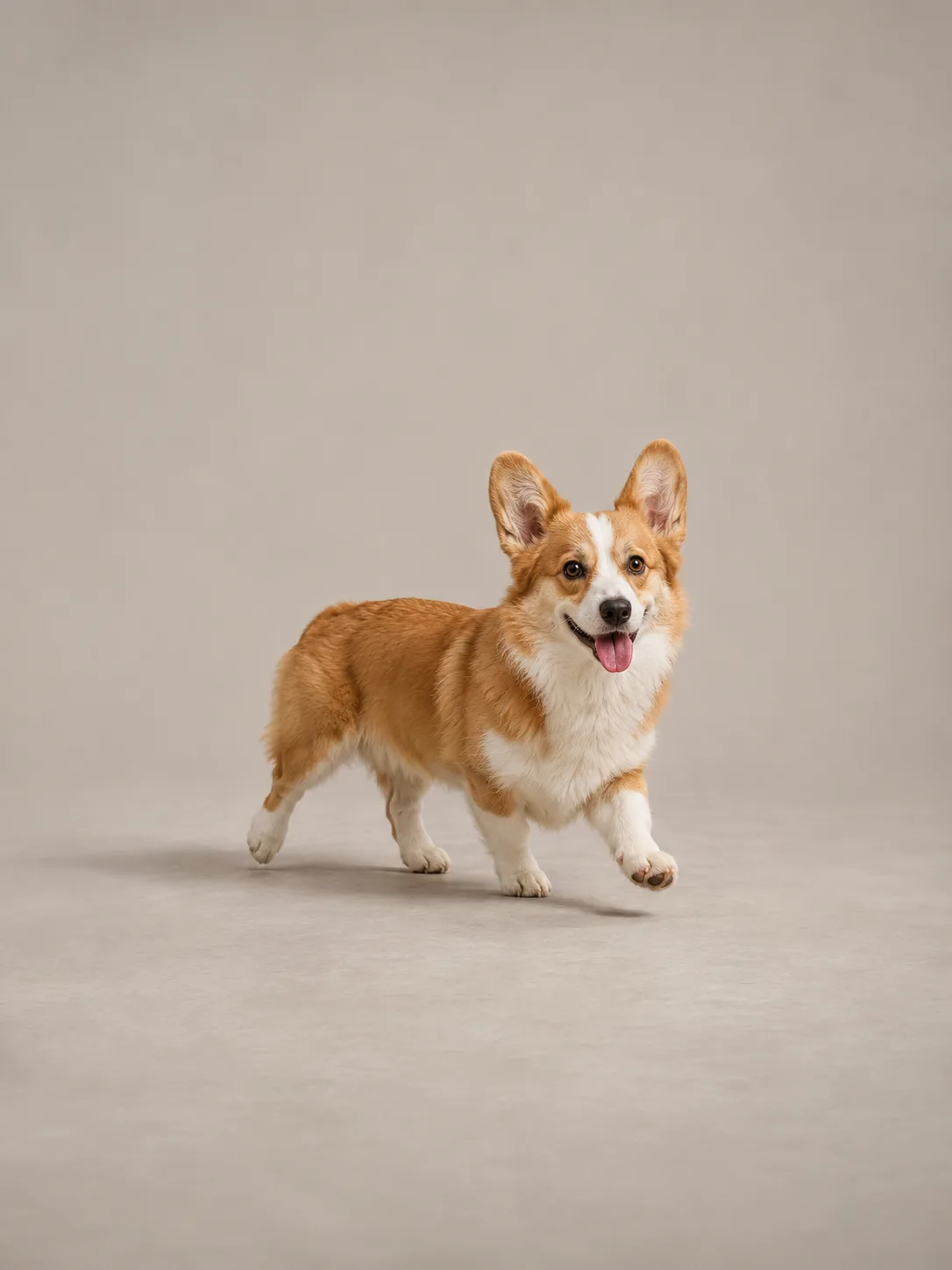
Harder to use
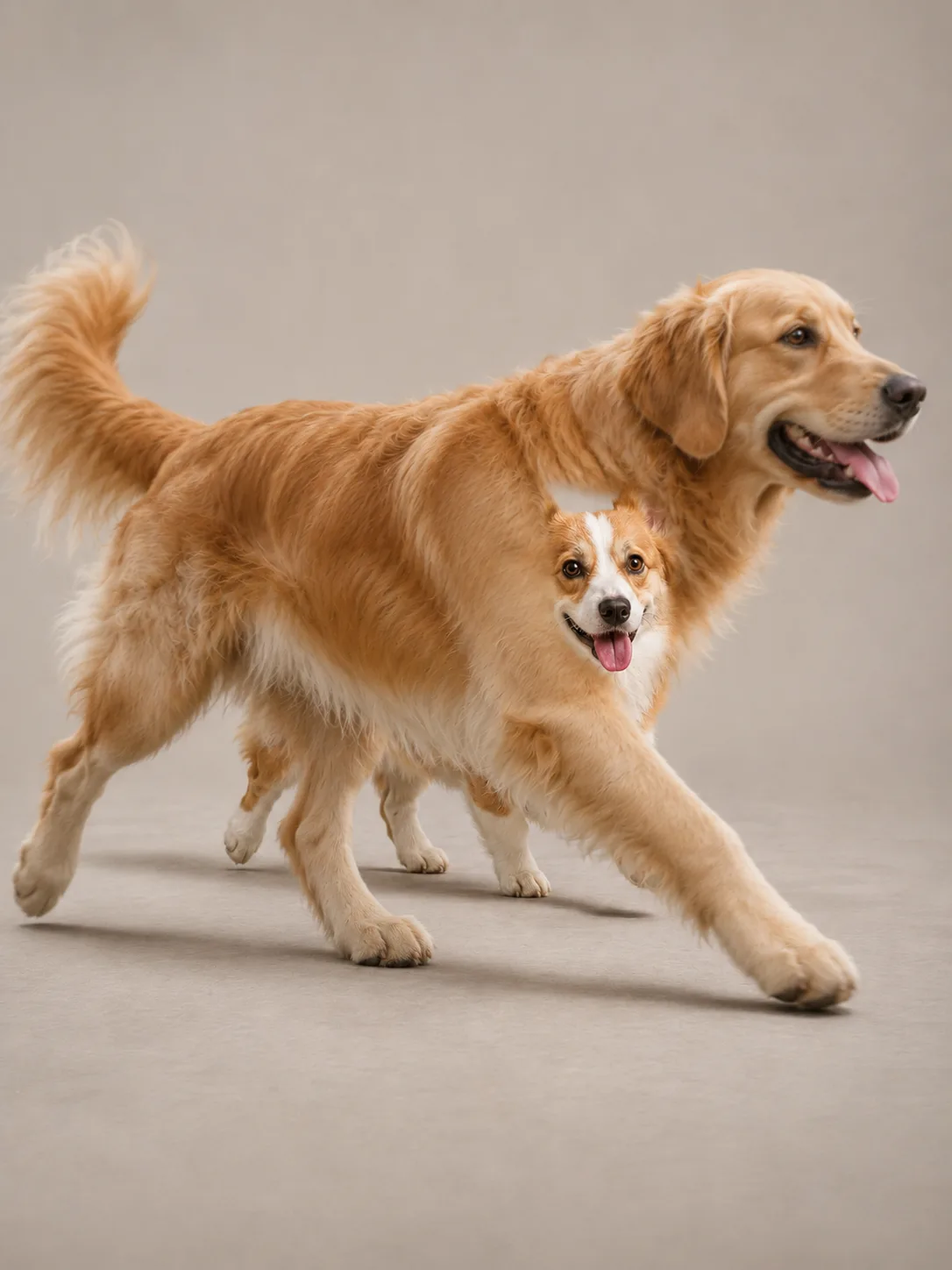
Keep the eyes, muzzle and markings visible, and check each effect for its specific roles.
Compare the prepared performance and its photo requirements.
Choose a reference whose camera angle and visible action fit the photo you plan to use.
Each effect identifies the required and optional photo slots for its cast.
Photos, effects and generation.
The photo provides an appearance reference for a pet role. The selected scene provides the action and composition, so watch the preview and check the role before choosing a photo.
Choose a clear photo where the eyes, muzzle and markings are visible. For a full-body action or dance, include the body and paws, with enough space around your pet.
Some effects have multiple photo slots. Open the scene to check whether each slot is required or optional and whether its role suits a pet or a person.
The Video workspace offers motion-reference inputs for supported models. The available input and settings depend on the selected model and mode.
The preview shows the source action and framing. A generated result can differ in appearance and movement, particularly when an animal is partly obscured or moves quickly.
Sign in, choose your inputs and check the credit estimate before generating.
Return to the workspace to prepare your next idea. Sign in, choose your inputs and check the credit estimate before generating.