



01
Use a prepared effect
Each fixed effect supplies a motion reference and identifies the photos needed for its cast. Preview the scene in the workspace before selecting it.
Turn a photo and a motion reference into a new scene. Choose an effect or add your own video, then prepare your cast in the workspace.
Creations from this workspace appear here.
Find a scene you like and open it in the workspace.
An effect combines a prepared performance with your photos. The reference guides the movement and composition, while the selected images provide the characters. Preview examples show what a scene can look like; your results can vary.
Start with a template or build a motion reference of your own.
STEP 1
Preview an effect or upload one continuous motion video. Pick a scene that shows the action you want to follow.
STEP 2
Match each required photo to its role. A clear view of the face, outfit and moving body parts gives you more to work with.
STEP 3
Check the required inputs, settings and credit cost, then generate your video.
Choose how much of the scene you want to bring yourself.
01
Each fixed effect supplies a motion reference and identifies the photos needed for its cast. Preview the scene in the workspace before selecting it.
02
Use the motion video input when you have a continuous clip of your own. Check the visible body parts and the length supported by your chosen model.
03
The workspace groups effects by theme and offers Discover and Newest views. Open a preview before applying a template to your draft.
Explore a few ways a reference performance can guide a new visual.
Car performance
01
A readable upper-body reference can carry a wave, a turn or a small movement. Choose a photo that includes the parts of the body involved.
02
Explore templates for people, pets and groups. Fixed effects show which photo belongs to each role before you prepare your cast.
03
A sample can demonstrate how motion and composition relate across different scenes. Review the example carefully: it is not a promise of an identical result.
Compare these examples when preparing a photo and motion clip.
A full-body action needs a photo with enough room to see the whole subject. For a portrait gesture, include the face and moving arms.
Recommended
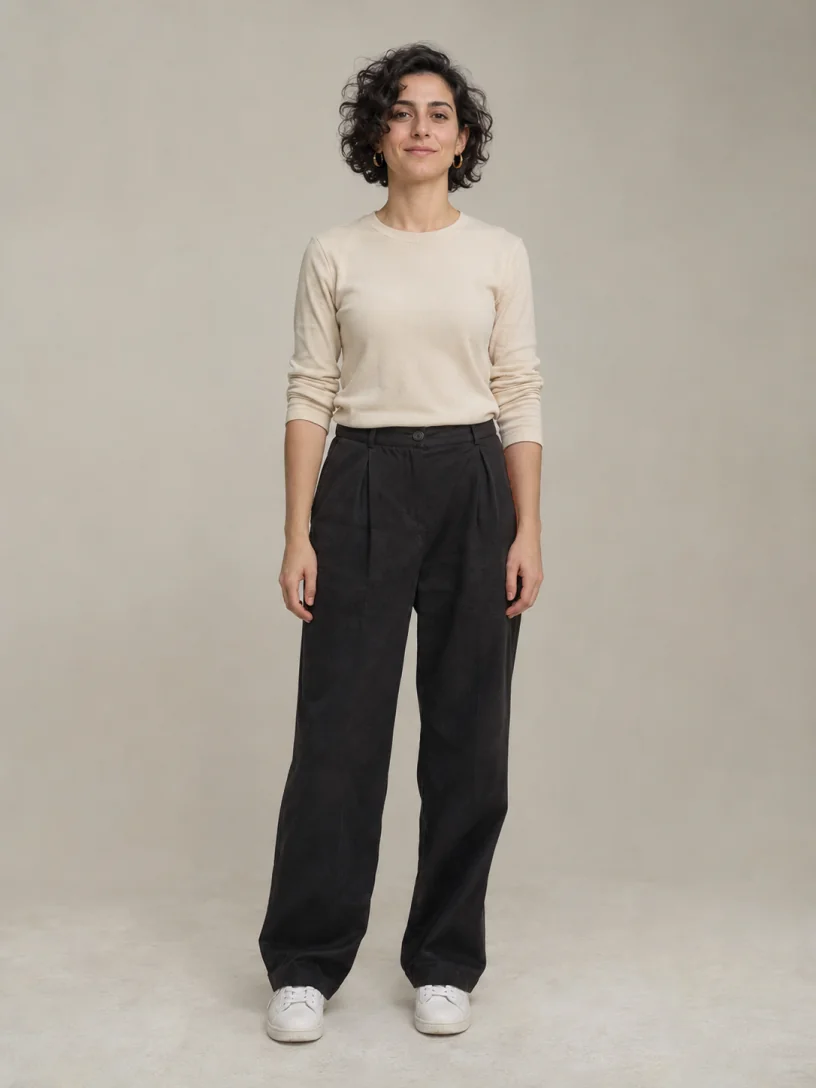
Avoid

Choose a clear shot and look for people or objects obscuring the movement.
Recommended
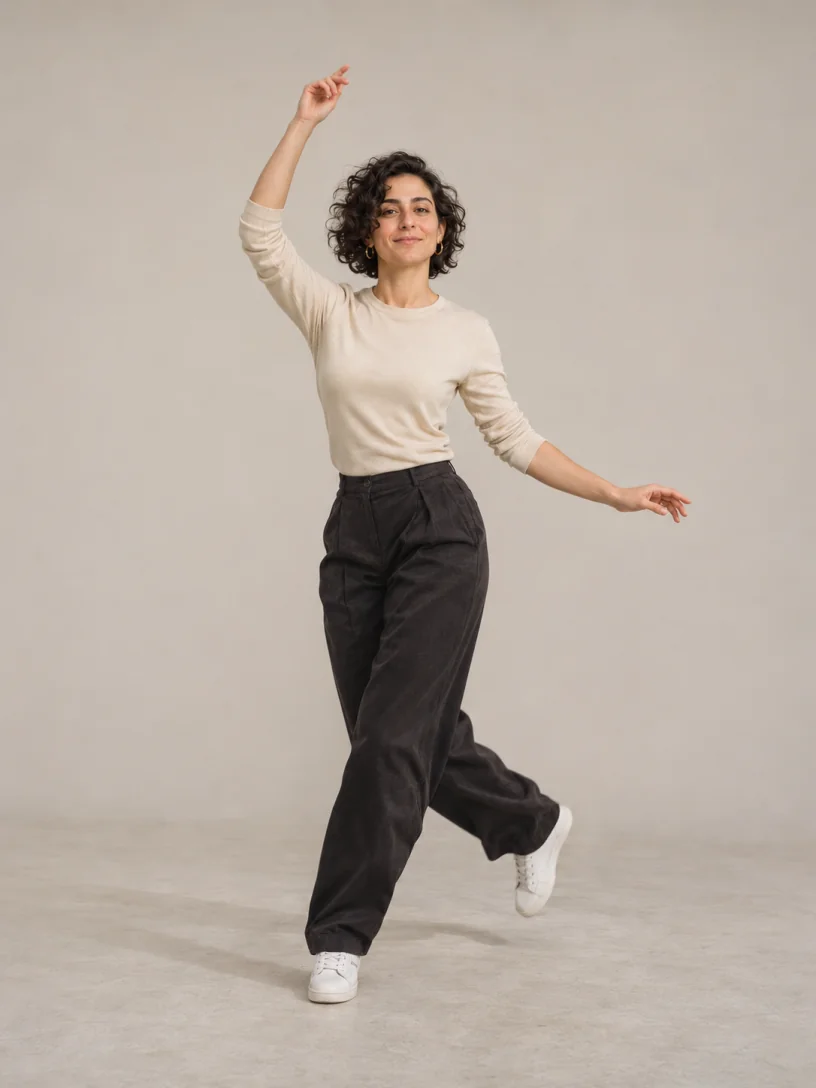
Avoid
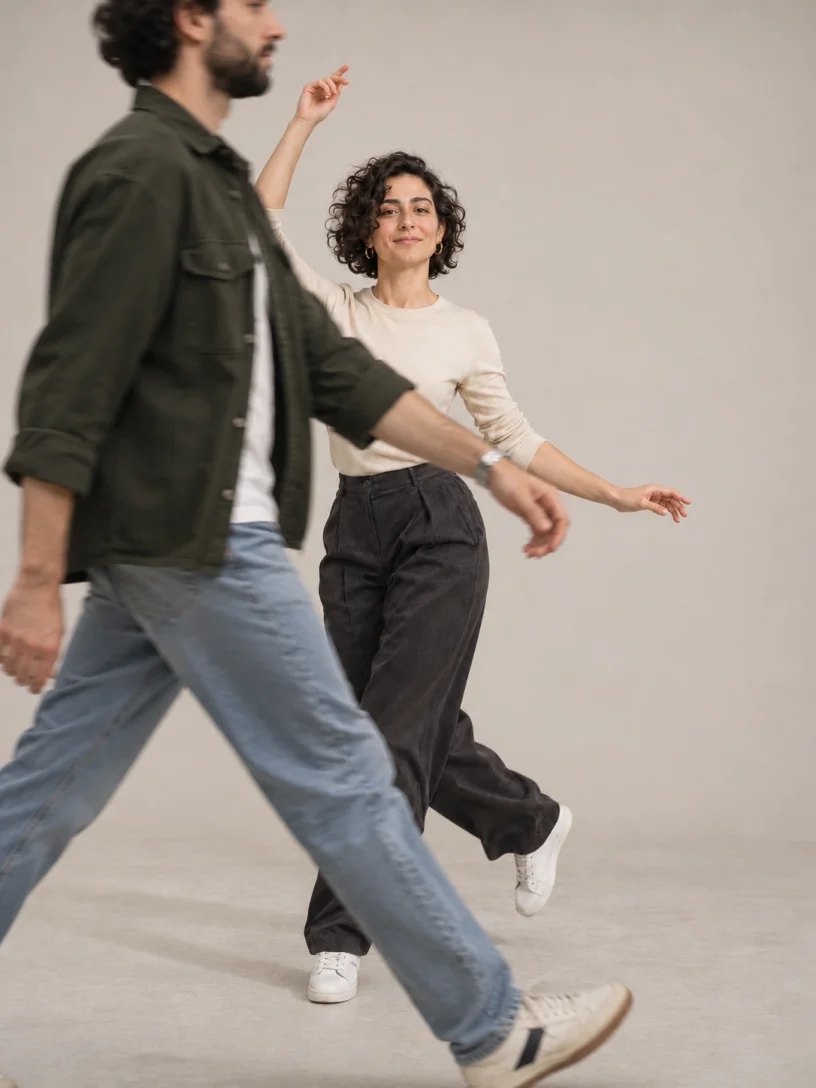
Preview the entire motion clip. Try a clear, continuous action and check that hands and feet remain visible where they matter.
Choose a plan or credit package that fits your creative work.
For your first ideas.
$100.0 charged yearly
2,400 credits/year
Up to 400 images
Up to 133 videos
For a steady creative flow.
$360.0 charged yearly
21,600 credits/year
Up to 3,600 images
Up to 1,200 videos
For more creations, more often.
$599.0 charged yearly
48,000 credits/year
Up to 8,000 images
Up to 2,666 videos
Try before you subscribe
Prices in USD; taxes and total shown at checkout. Subscriptions renew automatically; cancel in Billing settings. Subscription credits expire each period; one-time credits never expire.
Refunds: request within 72 hours. Used purchased credits and applicable non-refundable processing costs (up to 6%) are deducted. Terms · Refund Policy
What to prepare and how to create with effects.
Yes. Browse Discover or Newest, preview a scene and apply it in the workspace. The selected effect shows the photos needed for its roles.
The general Effects workspace lets you prepare your own motion reference. Fixed effects use their prepared reference; return to all effects to choose a different video.
It depends on the effect. Some use one required photo; others have separate required or optional roles. Check the labels in the selected effect before adding photos.
Use media you own or have permission to use. People shown in your uploads should have agreed to appear.
No. Examples illustrate movement and composition. Generated results can vary, particularly around hands, overlapping people and quick movement.
Sign in, select an effect and add the required photos. Review the displayed credit cost before generating. You can choose a subscription or credit package on the pricing page.
Explore effects and prepare a cast in the ReelCraze workspace.